Change sample rate on Mac
To change the sample rate on Mac without opening Audio MIDI Setup, SoundDial shows your output device's format and a sample-rate menu right in the menu bar.
A USB DAC can play 44.1, 48, 96 kHz and more, but macOS keeps the rate in Audio MIDI Setup, a utility most people never open. When the rate matters, it is three windows away.
The macOS way
Open Applications > Utilities > Audio MIDI Setup, select the output device and pick a rate from its Format menu. It works, and it is fine for a one-time change.
From SoundDial's output card
- Click SoundDial in the menu bar
- The output card shows the device and its format, for example “48 kHz · 32-bit”
- Pick a rate from the sample-rate menu, from 44.1 to 384 kHz
The menu appears only when the device offers more than one rate. You can also set it from a script with sounddial://sample-rate?value=.
Every device in one list
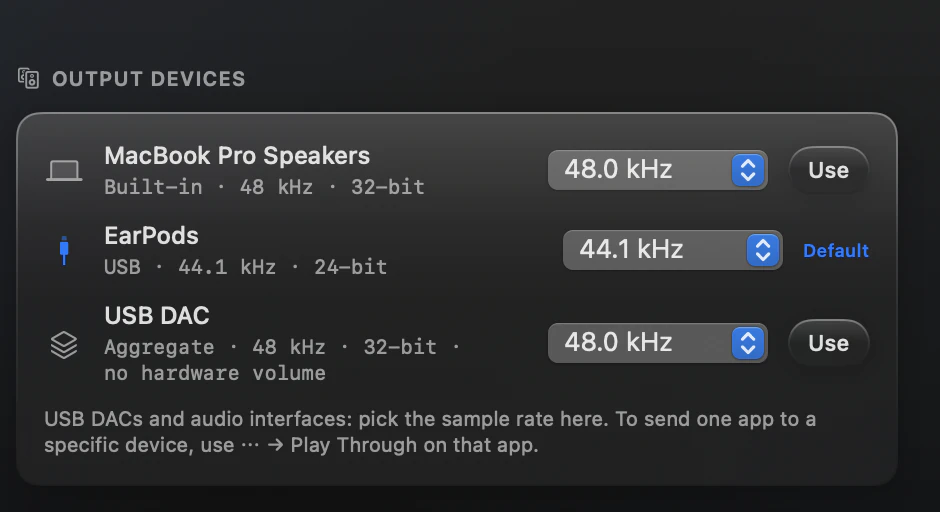
Settings > Audio & Devices > Output Devices lists every output with its transport (Built-in, USB, Bluetooth, HDMI, AirPlay and others) and format, adds “no hardware volume” where that applies, and has a sample-rate menu per device. The current output is marked “Default”; “Use” makes another one the Mac's output.
When the DAC has no volume control
Many DACs have no hardware volume, so the Mac's volume keys do nothing. For those, SoundDial's output card shows a “<Device> volume” slider: “This device has no volume control of its own, so SoundDial sets the level for every app.” The level is remembered per device.
Read more on this
FAQ
Why is there no sample-rate menu for my device?
The menu appears only when the device offers more than one rate.
Does SoundDial change the rate per app?
No. The sample rate belongs to the output device. To send one app to a different device, use Play Through in its ⋯ menu.
Is SoundDial a bit-perfect player?
No. SoundDial is a volume mixer; it makes no bit-perfect claims.
SoundDial: a volume slider and mute button for every app.
€14.99 one-time purchase · macOS 14.2+ · no subscription